
Advising
FIRST ADVISING SESSION
You will work with an enrollment specialist to assist you with scheduling your first semester of classes. During this meeting you will discuss career goals, campus resources, scheduling, financial aid and academic expectations. Your enrollment specialist is your first semester liaison to ensure a smooth transition to Fletcher Technical Community College. It is vital that you meet with your correct enrollment specialist to ensure you are receiving the most current information regarding your curriculum. Enrollment Services does allow walk ins but appointments are recommended to avoid wait times. You can schedule an appointment with your enrollment specialist based off of your program below.
If you are unsure who your enrollment specialist is please contact [email protected].
CONTINUING STUDENT ADVISING
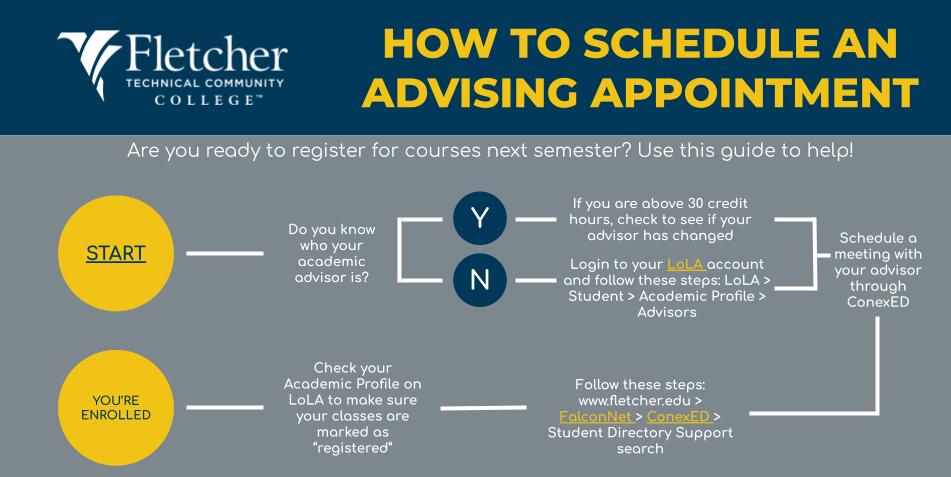
You will be assigned an advisor in your LoLA account within a month of beginning your first session. This advisor will guide you within your curriculum. They are there to assist you with advising and registration processes. Registration dates will be posted each semester.
If you do not have an advisor listed on your LoLA account within the first month of classes beginning, please contact [email protected].
LINKS
- Tips to prepare for your advising sessions
- Self Assessment and Guidance- MATH
- Self Assessment and Guidance- ENGLISH
CONTACT
Office of Enrollment Services
[email protected]
985-448-7900
How to Register for Classes in LoLA
Step-by-Step Instructions:
- Login to LoLA
- Select Add/Drop/Withdraw Classes
- Select Register for Classes
- Select Term and Search by the Term field
- Select Continue
- If you have an active Action Item a popup will appear:
- Follow the steps/prompts of the action items and complete task(s)
- Locate or Add Courses you would like to register for:
- You have 2 options to locate/add/course:
- Find Classes
- Enter the information for the course(s) you want to register in.
- Find the section you want to register in
- Click the ADD button to add to the summary section
- Once all courses are entered, click the Submit button in the summary section in the lower right hand side of the screen.
- If all registration requirements are met, the status of the course will change from Pending to Registered. IF there is an issue with the requirements, the status will be "Error Preventing Registration."
- You have 2 options to locate/add/course:
- Login to LoLA
- Select Add/Drop/Withdraw Classes
- Select Register for Classes
- Select Term and Search by the Term field
- Select Continue
- If you have an active Action Item a popup will appear:
- Follow the steps/prompts of the action items and complete task(s)
- Locate or Add Courses you would like to register for:
- You have 2 options to locate/add/course:
- Find Classes
- Enter the information for the course(s) you want to register in.
- Find the section you want to register in
- Click the ADD button to add to the summary section
- Once all courses are entered, click the Submit button in the summary section in the lower right hand side of the screen.
- If all registration requirements are met, the status of the course will change from Pending to Registered. IF there is an issue with the requirements, the status will be "Error Preventing Registration."
- You have 2 options to locate/add/course:
- Locate the Summary Block on the Lower Right Hand Side of the Screen.
- Click on the dropdown box under the Action column.
- Select the "Web Drop" option of the dropdown menu.
- Once all of the classes you want to withdraw from are selected as "Web Drop" from the Action column, click the Submit button in the Summary Section in the lower right hand side of the screen to remove the class.
| which enrollment specialist should I contact? | |
|---|---|
| Video chat on Cranium Cafe with Lauren Sanders |
Lauren SandersAssists with the following programs:
|
| Video chat on Cranium Cafe with Kaylee Pitre |
Kaylee PitreAssists with the following programs:
|
| Video chat on Cranium Cafe with Jaclyn Dufrene |
Jaclyn DufreneAssists with the following programs:
|
| Video chat on Cranium Cafe with Nathaniel Kimball |
Nathaniel KimballAssists with the following programs:
|
| Video chat on Cranium Cafe with Joy Lymous |
Joy LymousAssists with the following programs:
|
| Video chat on Cranium Cafe with Madeleine Baudland |
Madeleine BaulandAssists with the following programs:
|